
Hearbit AI 🦉🎙️
Hearbit AI is a powerful macOS desktop application designed to record system and microphone audio, transcribe it using Infomaniak's Whisper API, and generate intelligent AI summaries.
Features
- Dual-Channel Recording: Capture both your microphone (e.g., for voice notes) and system audio (e.g., for meetings) simultaneously.
- Powered by Infomaniak AI:
- Transcription: High-accuracy speech-to-text using Infomaniak's Whisper integration.
- Summarization: Generate concise summaries, action items, or meeting notes using models like Mixtral or Llama 3 via Infomaniak's LLM API.
- Auto-Save: Recordings and summaries are automatically saved to a persistent history.
- Customizable Prompts: Define your own AI templates (e.g., "Summarize", "Extract Action Items", "Translate").
- Privacy-Focused: Processed securily via your own Infomaniak API keys.
prerequisites
- macOS (Apple Silicon or Intel)
- Infomaniak AI Account: You need an API Key and Product ID from Infomaniak's Developer Portal.
Installation
- Download the latest release (
.dmgor.app).
Recording System Audio (Teams, Zoom, etc.)
To record meetings from apps like Microsoft Teams, Zoom, or Google Meet, you need to route the computer's audio into Hearbit AI. This requires BlackHole 2ch.
1. Install BlackHole
- Download and install BlackHole 2ch.
- Restart your computer if required.
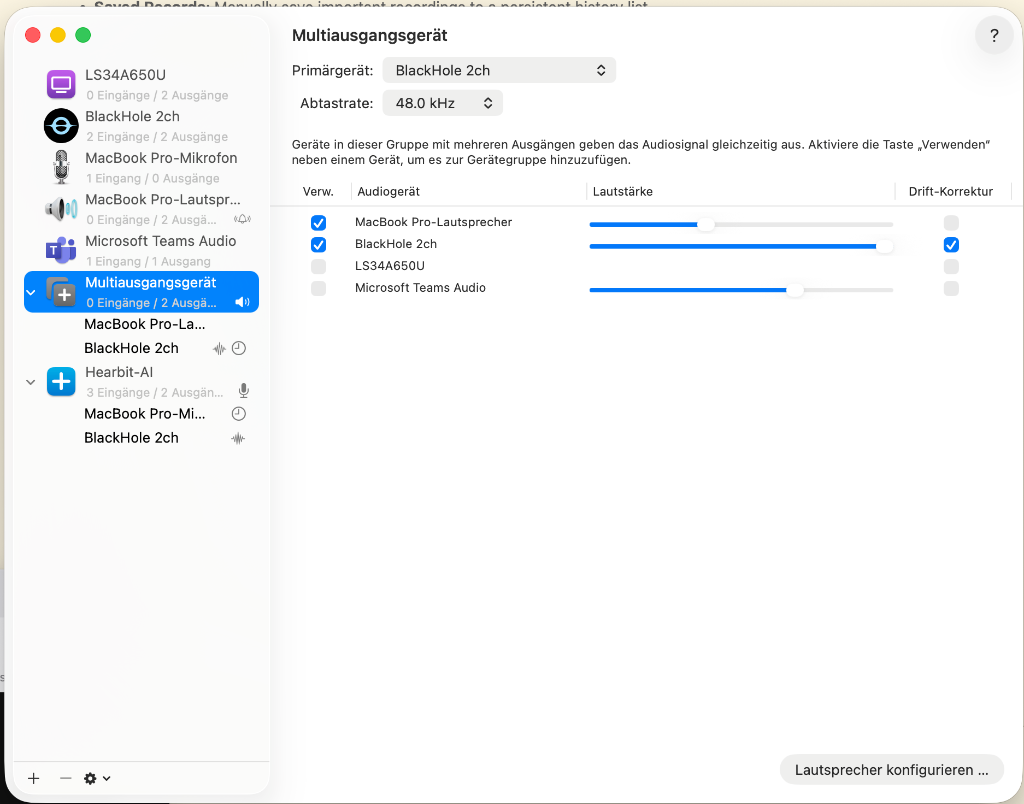
2. Create a Multi-Output Device (To hear audio while recording)
-
Open Audio MIDI Setup (search in Spotlight).
-
Click the
+icon and select Create Multi-Output Device. -
Check BlackHole 2ch AND MacBook Pro Speakers (or your headphones).
-
Set "Master Device" to BlackHole 2ch.

3. Create an Aggregate Device (For Hearbit AI Input)
-
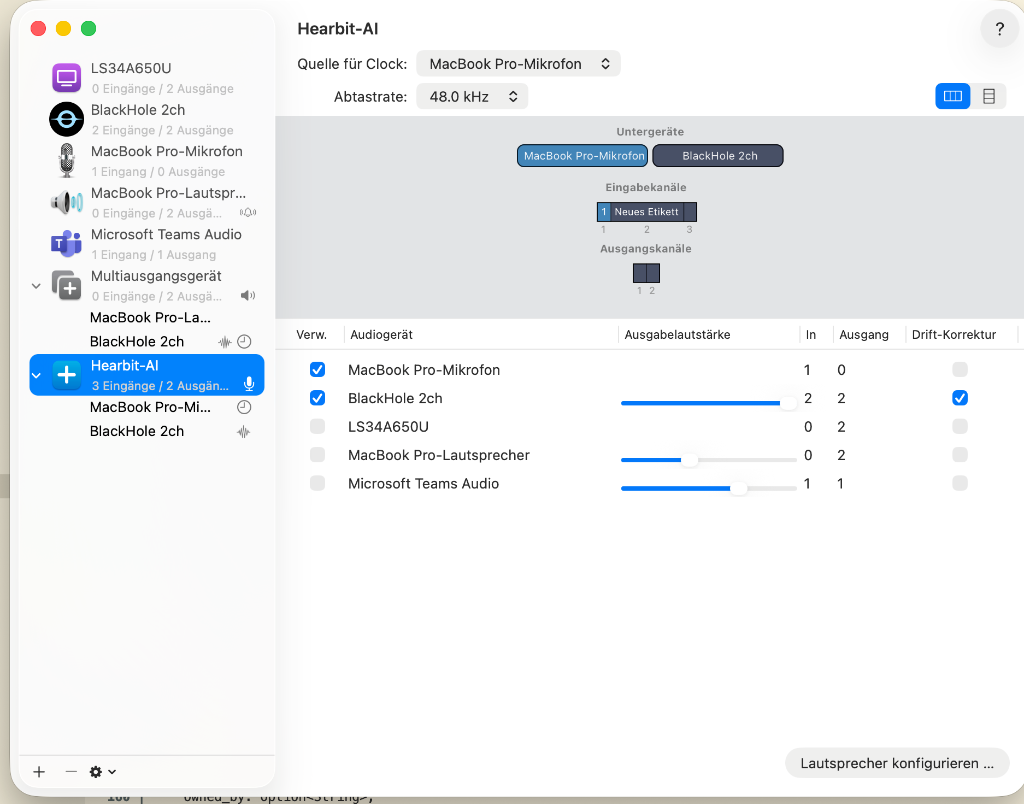
In Audio MIDI Setup, click
+and select Create Aggregate Device. -
Name it "Hearbit-AI" (or similar).
-
Check BlackHole 2ch AND MacBook Pro Microphone.
-
Ensure "Drift Correction" is enabled for the Microphone.

4. Setup in Hearbit AI
- Open Hearbit AI.
- In the Input Device dropdown, select your Aggregate Device (e.g., "Hearbit-AI").
- Start Recording.
5. Setup in Teams/Zoom
- Set your Speaker output in Teams/Zoom to the Multi-Output Device you created in Step 2.
- Configure:
- Click the Settings (gear icon) in the top right.
- Enter your Infomaniak API Key and Product ID.
- (Optional) Customize your AI prompts.
- Record:
- Select your Input Device (e.g., "MacBook Pro Microphone" or an aggregate device for system audio).
- Select an LLM Model (e.g., Mixtral).
- Click Start Recording.
- Process:
- Click Stop Recording.
- The app will automatically upload, transcribe, and summarize your audio.
- History:
- Click Records to view past recordings.
Development
This app is built with Tauri, React, and TypeScript.
Setup
npm install
Run Locally
npm run dev
# OR
npm run tauri dev
Build for Production
npm run tauri build
Icons
The app uses a custom generated icon set located in src-tauri/icons.
License
[License Name]